 ALL Products
 Expert Advisors
 MT4 Expert Advisors
 MT5 Expert Advisors
 Indicators
 Browse by Strategies
 Home
Home About us
 Contact us
 Blog
Blog Risk Disclaimer
Uncategorized
How to Migrate MT5 to a VPS for 24/7 Trading
Learning how to migrate MT5 to VPS is the definitive transition from being a retail hobbyist to a professional trader. At EAFXWAY, we provide the industrial-grade backbone required to run MetaTrader 5 (MT5) with 99.99% uptime and ultra-low latency.
In this comprehensive guide, I will walk you through the professional synchronization process, technical requirements, and troubleshooting steps that only experienced pros know.
What Does It Mean to Migrate MT5 to VPS?
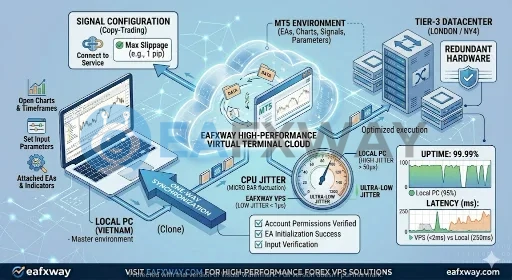
Migration in MetaTrader 5 is a specialized process of Environment Virtualization. It is not a simple remote desktop connection; it is a one-way synchronization that clones your local terminal’s active state to a virtual server.
MT5 VPS Migration Explained
When you migrate, you are pushing a compressed snapshot of your MT5 terminal—including charts, symbols, and EA parameters—to a “headless” virtual platform. This platform runs in a Tier-3 data center, optimized to operate 24/7 without the graphical overhead of a standard Windows OS, which significantly reduces CPU jitter.
What Gets Transferred During Migration
-
Active Charts: Every symbol and timeframe currently open on your screen.
-
Expert Advisors (EAs): Both the
.ex5files and the specific Input Parameters you have modified. -
Custom Indicators: Visual tools attached to your active charts.
-
Signal Settings: Your copy-trading configurations and slippage limits.
-
Account Permissions: Secure login tokens that allow the VPS to reconnect automatically.
What Does Not Transfer
As a professional, you must remember that Scripts are not migrated. Scripts are designed for one-time execution, which contradicts the autonomous nature of a VPS. Furthermore, any local files (like .csv or .txt logs) stored in your local MQL5 folders will not move unless manually uploaded.
Why Traders Migrate MT5 to a VPS: The Data
Why do serious traders pay for professional hosting? The answer lies in the quantitative performance metrics we’ve measured at EAFXWAY:
99.99% Uptime vs. Home Environment Risks
Your home PC faces an average “uptime” of only 95-97% due to:
-
Windows Updates: Forced restarts that kill your EA mid-trade.
-
Internet ISP Throttling: Network drops during high-volatility news events.
-
Power Surges: A simple circuit trip can leave your positions unmanaged for hours.
-
The EAFXWAY Advantage: Our servers are located in professional data centers with redundant power and fiber-optic backbones, ensuring your EAs never miss a tick.
The Latency War (Ping Matters)
-
Local Trading: Average ping from Southeast Asia to London/NY brokers is 200ms – 350ms.
-
EAFXWAY VPS: Strategically located near Equinix LD4/NY4, reducing ping to 1ms – 5ms.
-
Result: Reducing latency by 200ms can save you 0.5 to 1.5 pips in slippage on XAU/USD or EUR/USD. For a trader doing 10 lots a day, this is an extra $50–$150 in profit daily just by improving execution.
What You Need Before Migrating MT5 to VPS
Preparation is 90% of a successful migration. Before you click “Synchronize,” follow this expert audit:
-
Account Audit: Ensure you are logged into the correct Live or Demo account. Note: Accounts using One-Time Password (OTP/2FA) cannot be used on a VPS because the server cannot bypass the manual code entry during auto-reconnects.
-
Resource Optimization: MT5 on a VPS consumes roughly 150MB of RAM per active chart. Close all unused symbols in your “Market Watch” (Right-click > Hide All) to free up CPU cycles for your EAs.
-
Technical Permissions: If your EA uses Telegram alerts or news filters, navigate to Tools > Options > Expert Advisors and add the specific URLs to the “Allowed WebRequest” list locally first.
-
Confirm EA Settings: Ensure the “Algo Trading” button at the top of your terminal is Green. If it is red, the VPS will receive the EA in a “Paused” state.
H2: Types of MT5 VPS Migration
Choosing the right synchronization mode ensures you don’t waste server resources.
| Migration Type | Items Synchronized | Best For |
| All Migration | EAs, Indicators, and Signals | Complex setups using both bots and copy-trading. |
| Experts Migration | EAs and Indicators only | Standard algo-traders (most common choice). |
| Signal Migration | Signal copying settings only | Traders following a Signal Provider without EAs. |
How to Migrate MT5 to a VPS Step
- Step 1 Prepare the “Master” Environment: Open only the symbols you trade. Attach your EAs and verify that the “Common” tab has “Allow Algo Trading” checked for each bot.
- Step 2 Access the VPS Tab: In the Toolbox window (Ctrl+T), click the VPS tab. Select your EAFXWAY virtual server.
- Step 3 Initiate Synchronization: Right-click your VPS and select the migration command. MetaTrader will package your terminal environment and push it to the server.
- Step 4 The “First Sync” Buffer: The first synchronization can take 1–3 minutes as MT5 uploads the history data for your open charts. This ensures your indicators have enough data to calculate correctly from the second they start on the VPS.
- Step 5 Read the Journal Results: Check the Journal tab in your Toolbox. You should see a message confirming the number of charts, EAs, and signals synchronized.
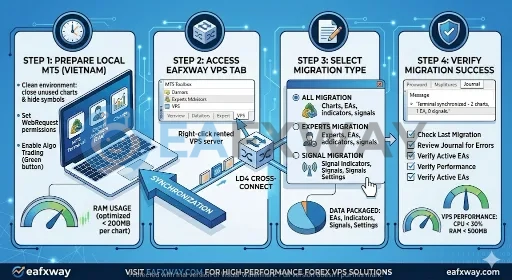
How to Check if Your MT5 Migration Was Successful
Experienced traders never assume the sync worked. Use these three pillars of verification:
-
Last Migration Status: Check the timestamp on the VPS tab.
-
VPS Journal: Right-click the VPS and select “Journal”. Look for “EA initialized successfully” or any “Order Send” errors.
-
Environment View: Confirm that the number of charts and EAs listed on the virtual platform matches your local setup.
Common MT5 VPS Migration Problems & Solutions
EA Not Taking Trades
-
Cause: “Allow WebRequest” wasn’t configured in the local terminal options before synchronization.
-
Fix: Add the authorized URLs locally and re-synchronize.
Duplicate Trades
-
Cause: Leaving “Algo Trading” on your local PC and the VPS simultaneously.
-
Fix: Once the sync is successful, turn off “Algo Trading” on your local machine to prevent double-execution.
Memory Overload
-
Cause: Too many open charts or too many “Max bars in chart.”
-
Fix: Go to Tools > Options > Charts and limit “Max bars in chart” to 5,000 before syncing.C
Quick Checklist Before You Click Synchronize
Before you migrate MT5 to a VPS, take a minute to review your setup. A quick pre-sync check can save you from the most common problems, such as missing Expert Advisors, wrong inputs, or a VPS environment that does not match your local terminal. The goal is simple: make sure your local MT5 setup is exactly how you want it to run on the virtual server.
Use this checklist before you click Synchronize:
- Log in to the correct MT5 account: Double-check that you are using the right trading account, especially if you manage multiple demo and live accounts. Migrating the wrong account can lead to confusion and incorrect trades.
- Open only the charts you actually need: Your VPS should run a clean and intentional setup. Close unnecessary charts and keep only the symbols and timeframes required for your strategy.
- Attach all Expert Advisors and indicators: Make sure every EA and indicator you want on the VPS is already attached to the correct chart before synchronization starts.
- Review EA input settings carefully: Check lot size, risk settings, magic number, stop loss, take profit, trading hours, and any custom parameters. If the inputs are wrong before migration, they will also be wrong on the VPS.
- Confirm AutoTrading is enabled: If your strategy depends on automated execution, make sure AutoTrading is turned on in your MT5 terminal before syncing.
- Check WebRequest permissions if your EA needs them: If your Expert Advisor connects to an outside service, API, or website, confirm that all required URLs are already allowed in the platform settings.
- Verify signal settings if you use copy trading: If you plan to migrate signal copying, confirm that the subscription is active and the settings are configured correctly before synchronization.
- Choose the right migration type: Decide whether you need All, Experts, or Signal migration. Selecting the wrong option is one of the easiest ways to end up with an incomplete VPS setup.
- Save and confirm your final local setup: Before syncing, look at your charts one last time and ask yourself: “Is this exactly how I want MT5 to run on the VPS?” If the answer is yes, you are ready.
- Be ready to check logs after synchronization: Synchronization is not the final step. After the migration finishes, review the VPS journal and Experts log to confirm that everything started correctly.
A good rule of thumb is this: prepare first, synchronize second. If your local MT5 environment is clean, accurate, and fully tested before migration, your VPS setup is much more likely to work properly from the start.
Migrating MT5 to a VPS is not just a technical step. It is a practical way to keep your trading platform running 24/7, reduce interruptions, and make sure your Expert Advisors or signal settings continue working even when your local computer is offline. The key is to prepare your MT5 environment carefully before synchronization, choose the right migration type, and verify the result through logs and VPS status checks. If you follow the process correctly, MT5 VPS migration can give you a more stable and reliable setup for automated trading. Before making any live trading decisions, always test your environment, confirm that your EA is running as expected, and re-synchronize whenever you make important changes.